
Shizuku Setup Guide
Shizuku is required for touch input and app launching in Castla. It takes about 5 minutes — no PC needed.
Download & Install Shizuku
Shizuku is no longer available on Google Play. Download the latest APK from the GitHub page below.
Enable Developer Options
Android Developer Options are required to run Shizuku.
- Open the Settings app
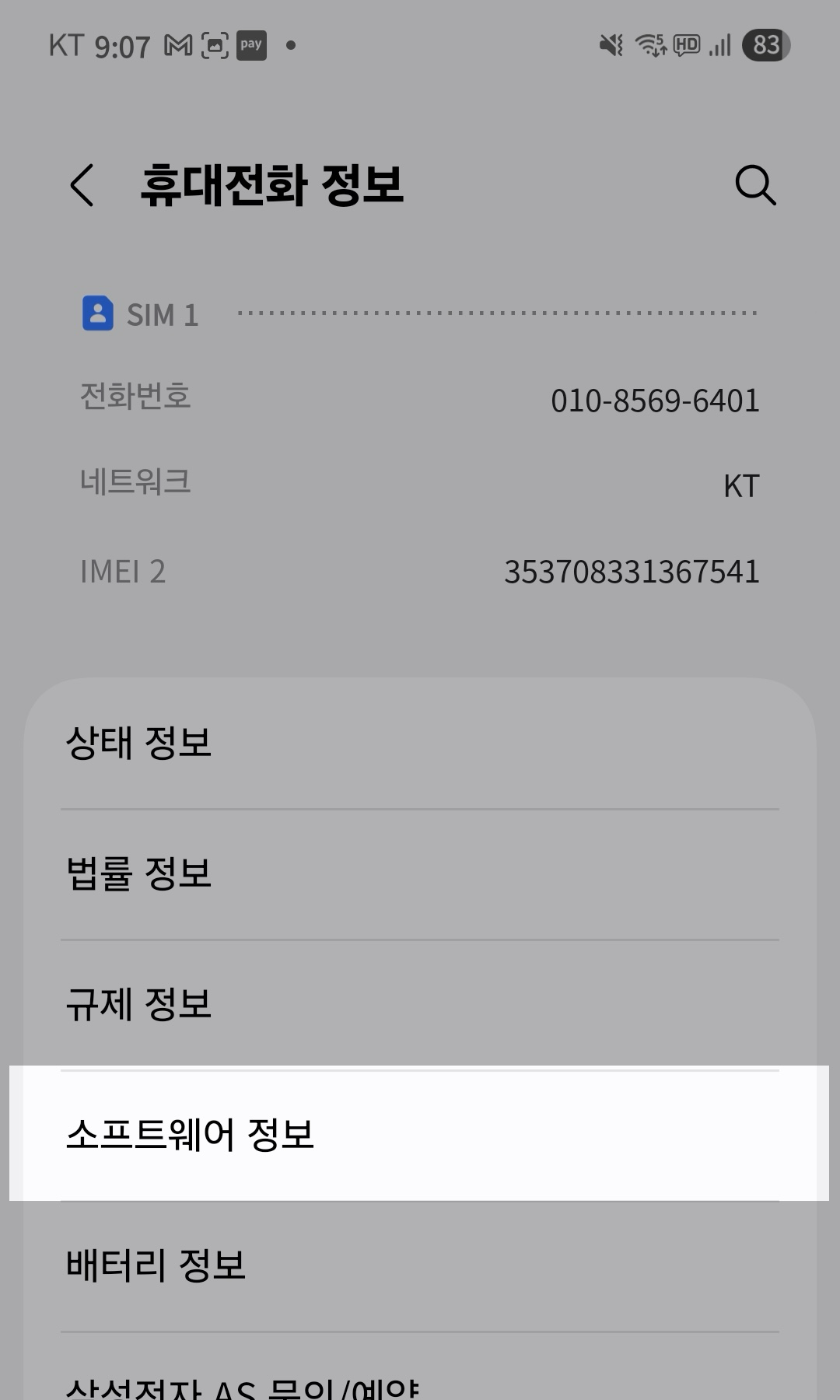
- Go to About Phone
- Tap Software Information
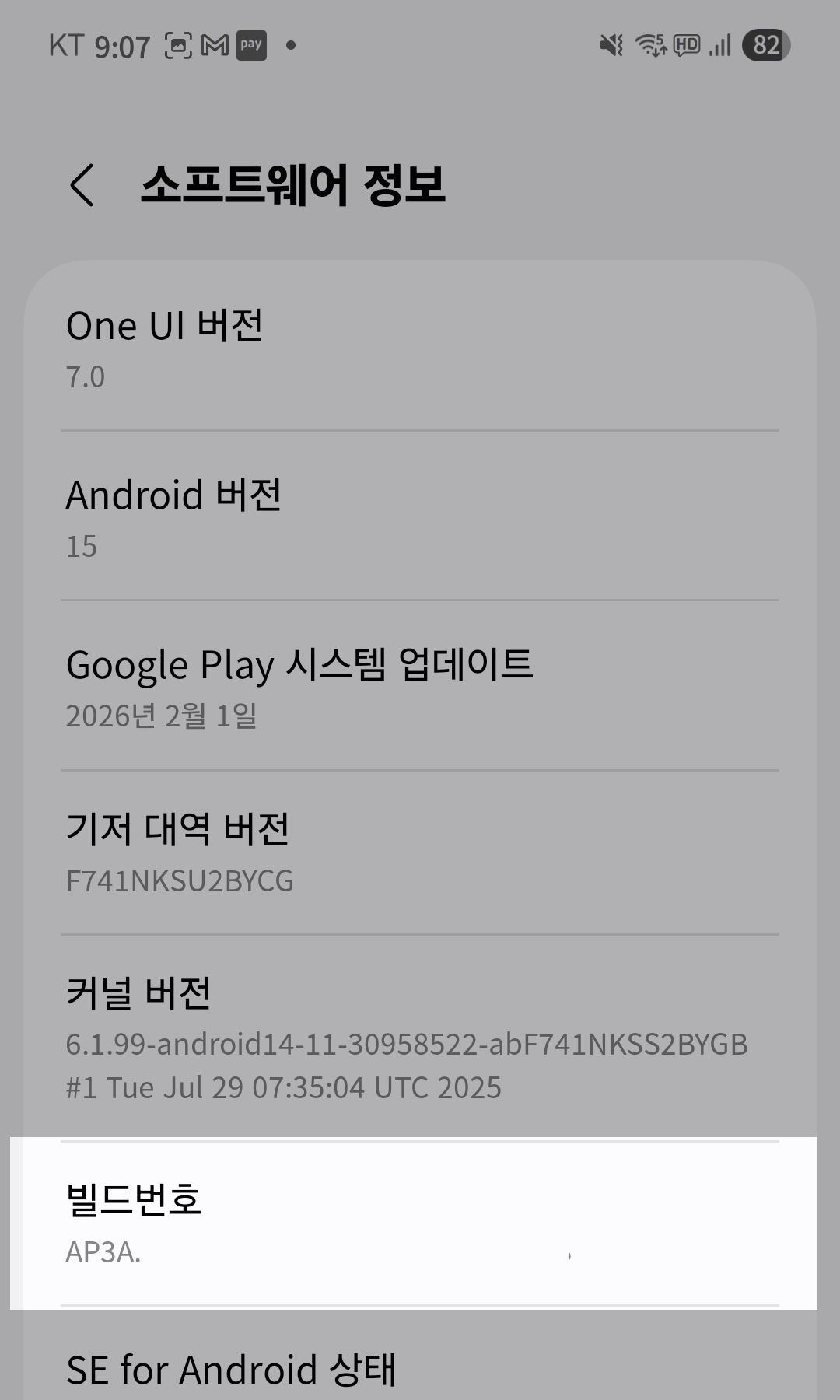
- Tap Build Number 7 times quickly
- You'll see "You are now a developer!" when done
Enable Wireless Debugging
Shizuku uses Wireless Debugging to grant permissions.
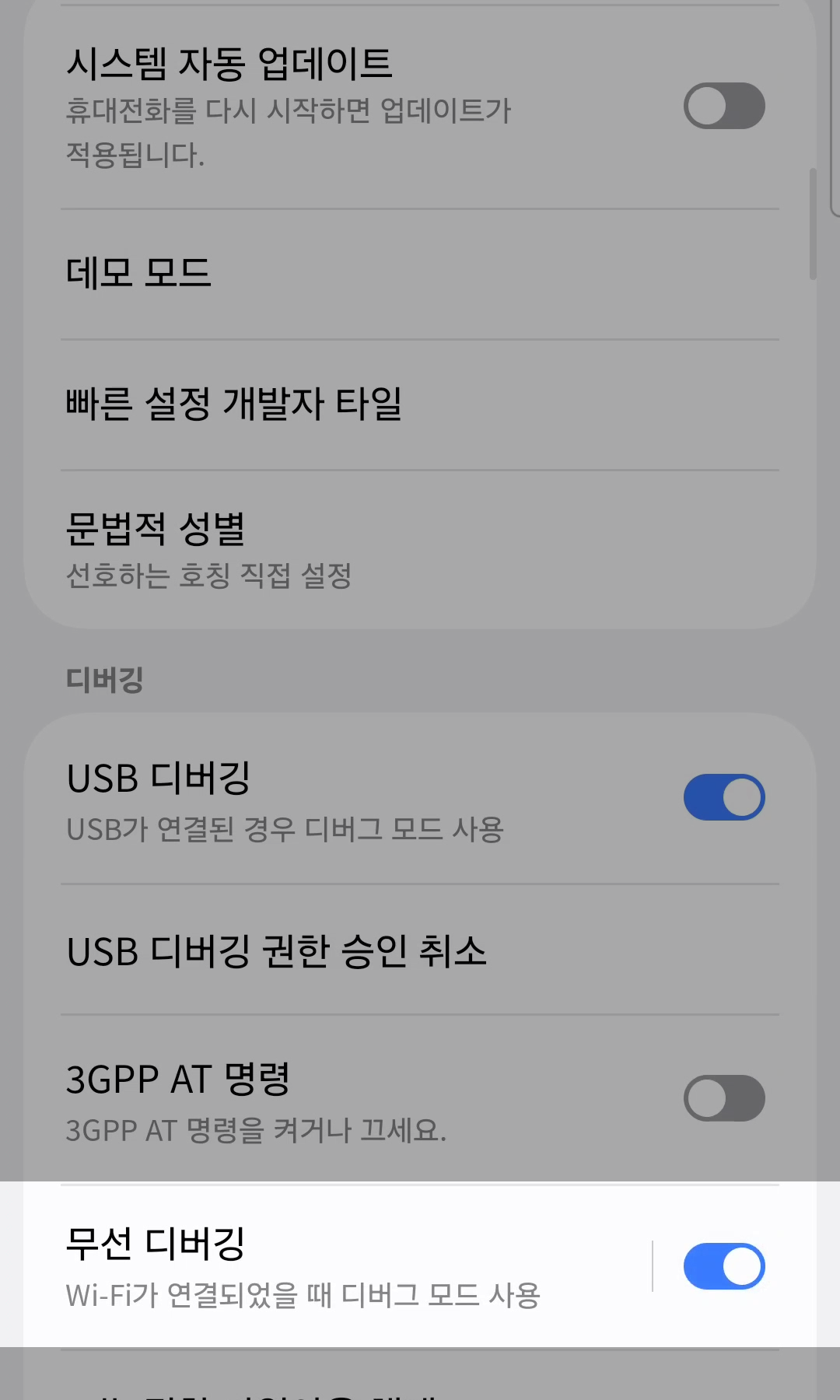
- Go to Settings > Developer Options
- Find Wireless Debugging and toggle ON
- Make sure you're connected to WiFi
- Tap Allow on the confirmation popup
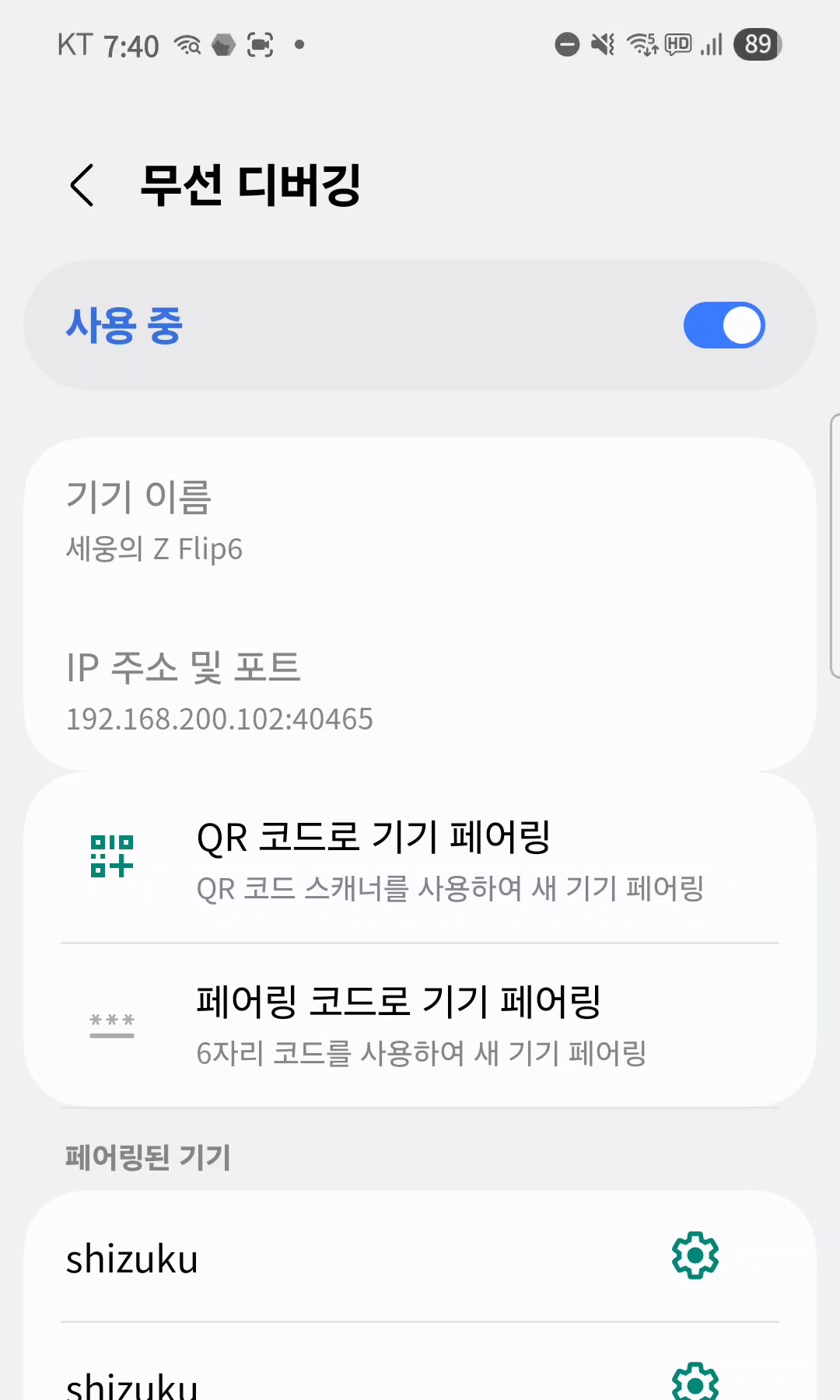
Start Shizuku
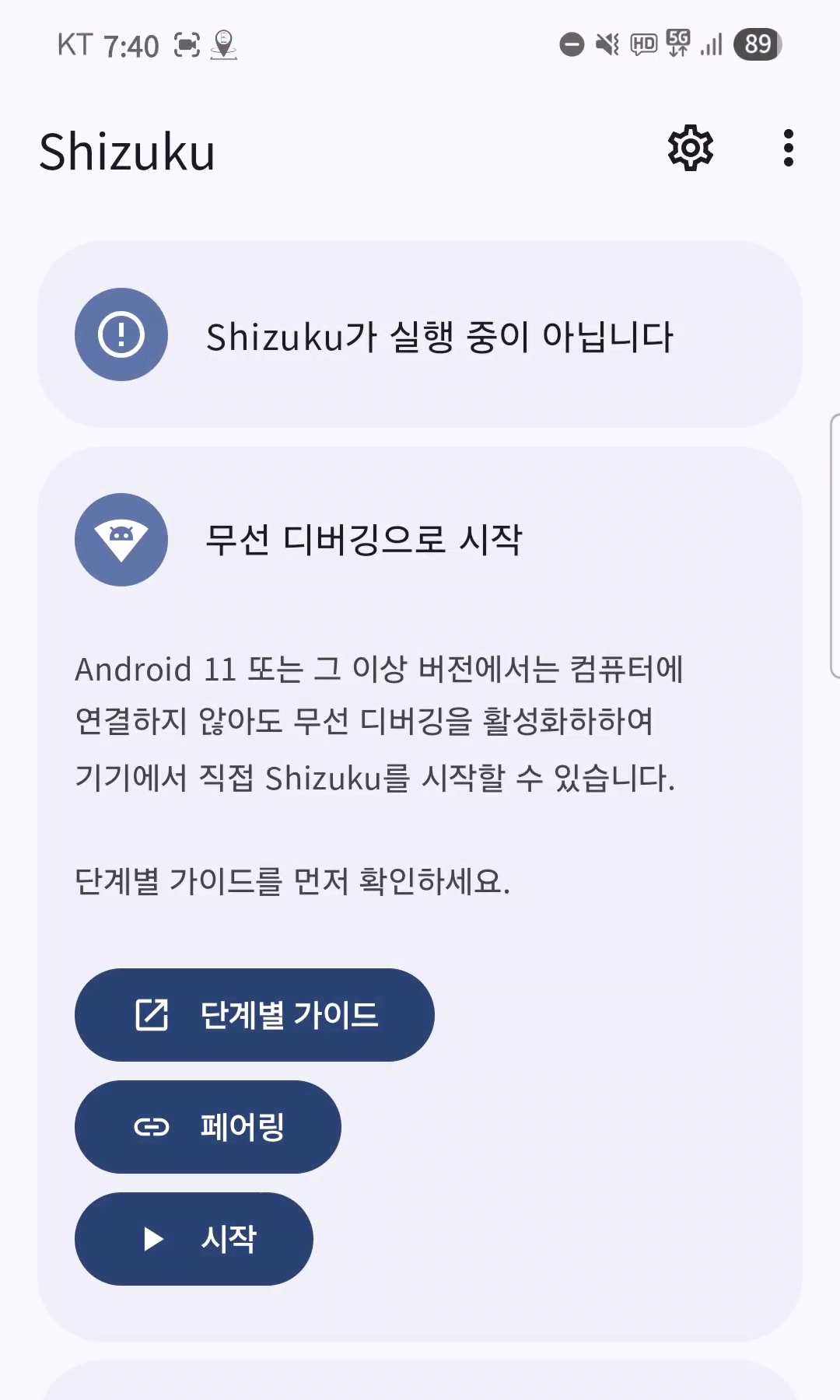
Shizuku 앱을 열고 페어링을 시작합니다.
- Open the Shizuku app
- Tap the Pairing button under "Start via Wireless debugging"
- Tap the notification to go to Settings > Developer Options > Wireless Debugging
- Tap "Pair device with pairing code"
- Enter the 6-digit code in the Shizuku notification
- After pairing, tap Start in Shizuku
- "Shizuku is running" at the top means you're done!
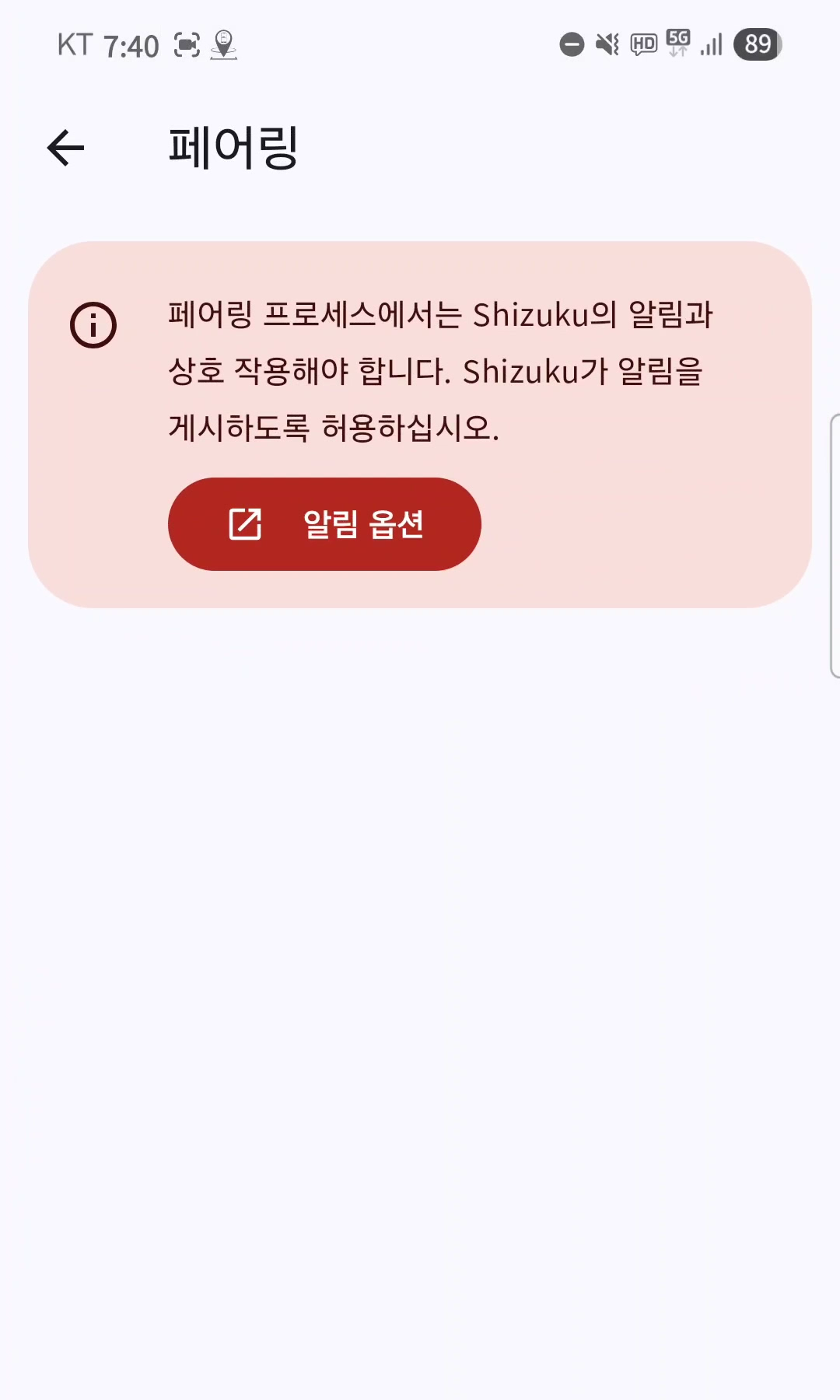
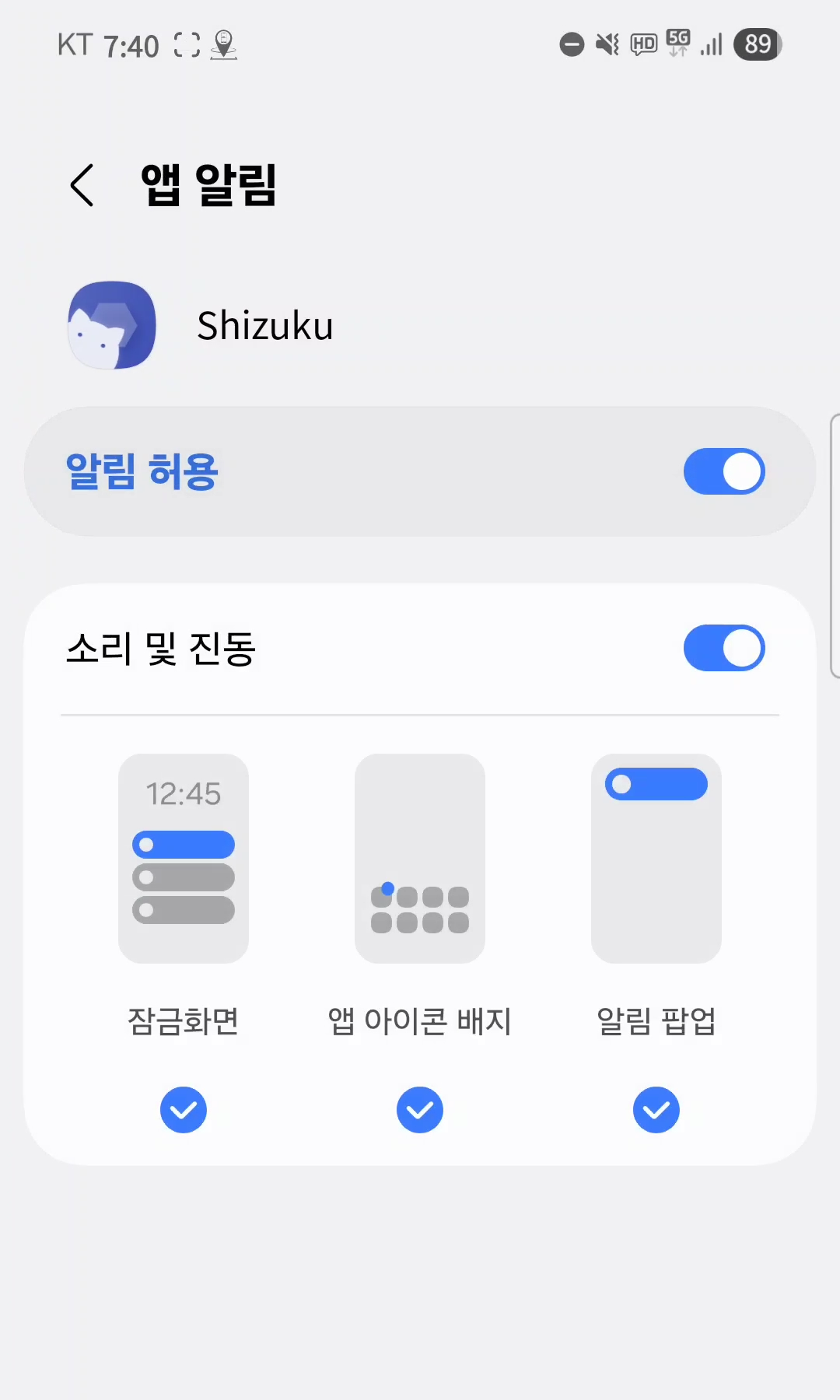
Return to Castla
Castla will automatically detect that Shizuku is running and finish configuring the Tesla connection. You can start mirroring right away.
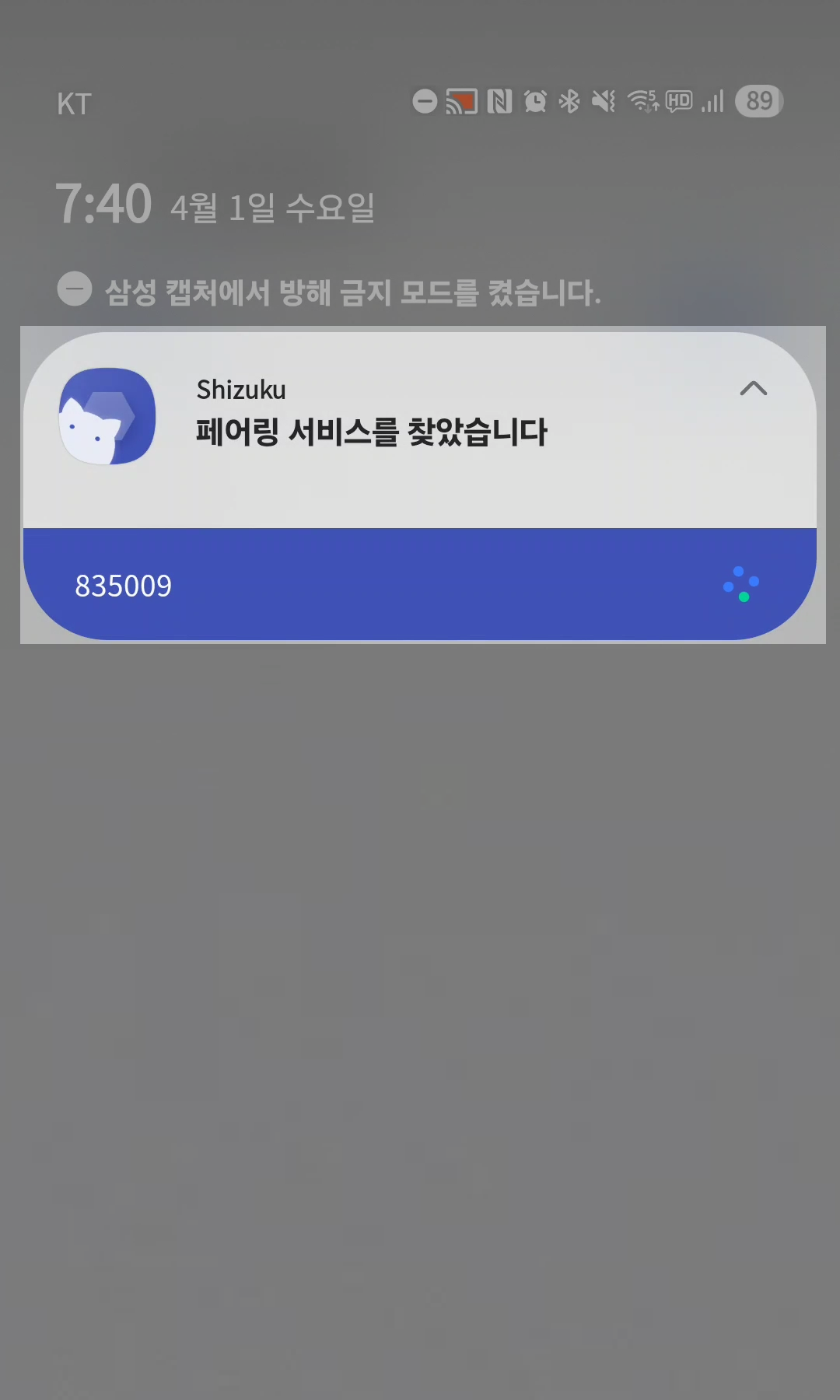
- 설정 > 무선 디버깅에서 페어링 코드로 기기 페어링을 탭하면 6자리 코드가 표시됩니다
- 동시에 알림 패널에 Shizuku "페어링 서비스를 찾았습니다" 알림이 나타나며 코드 입력란이 활성화됩니다
- 6자리 페어링 코드를 입력하고 전송하세요
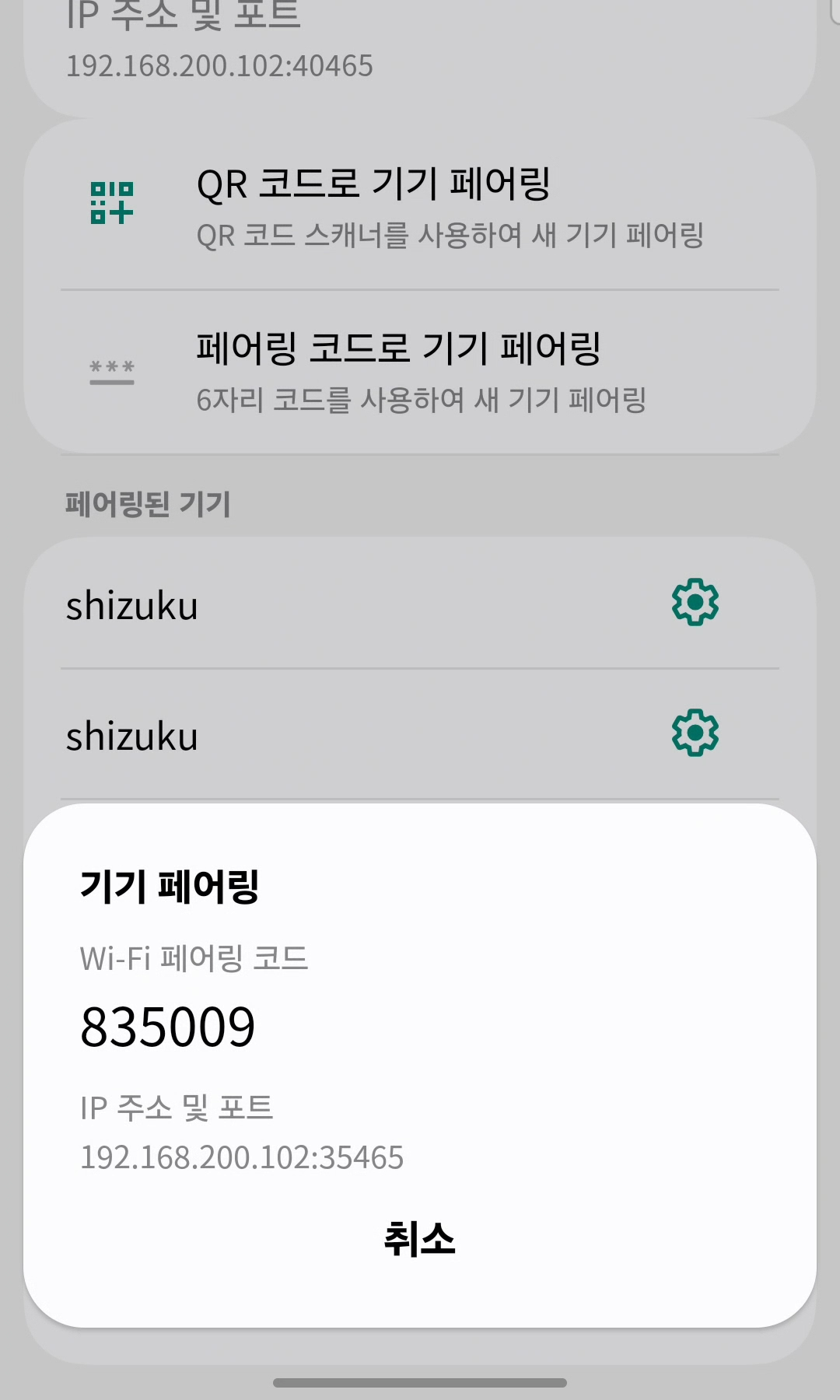
Shizuku 시작
페어링이 완료되면 Shizuku를 실행합니다.
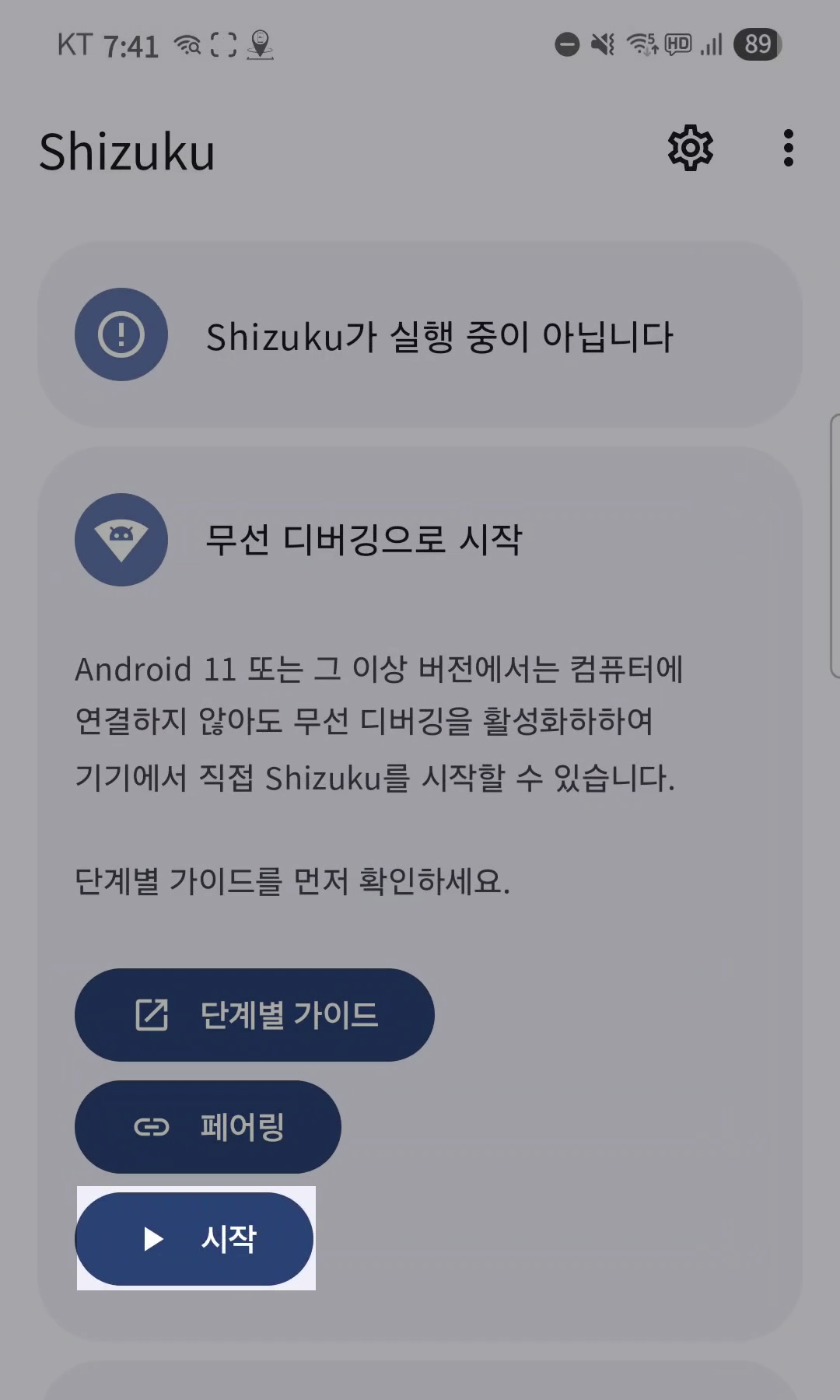
- Shizuku 앱으로 돌아가 무선 디버깅으로 시작 섹션 아래의 시작 버튼을 탭하세요. ⚠️ 하단의 "루트로 시작"이 아닌 상단의 "무선 디버깅으로 시작" 버튼을 눌러야 합니다
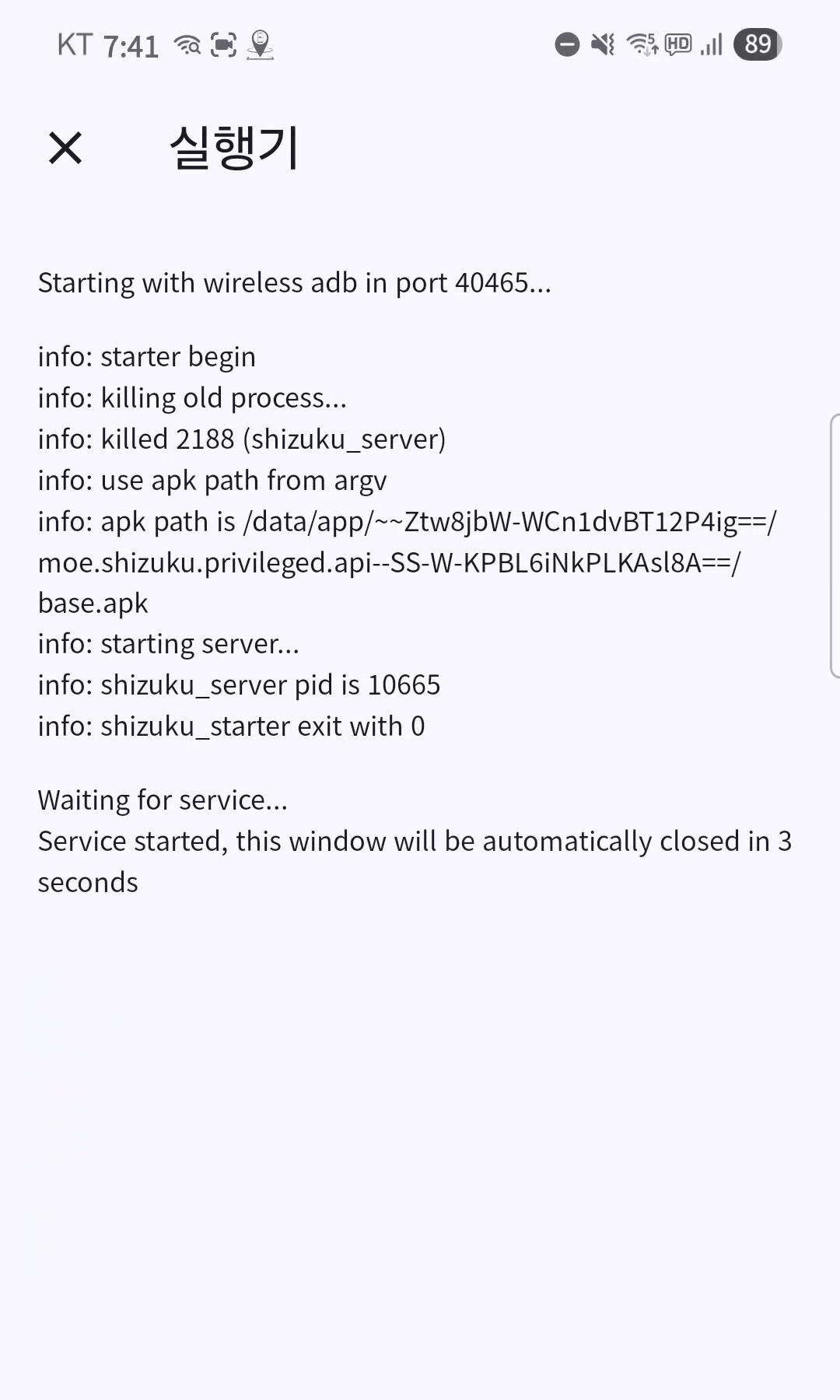
- 실행기 화면에 "Service started"가 표시되면 완료입니다
Castla에서 Shizuku 권한 부여
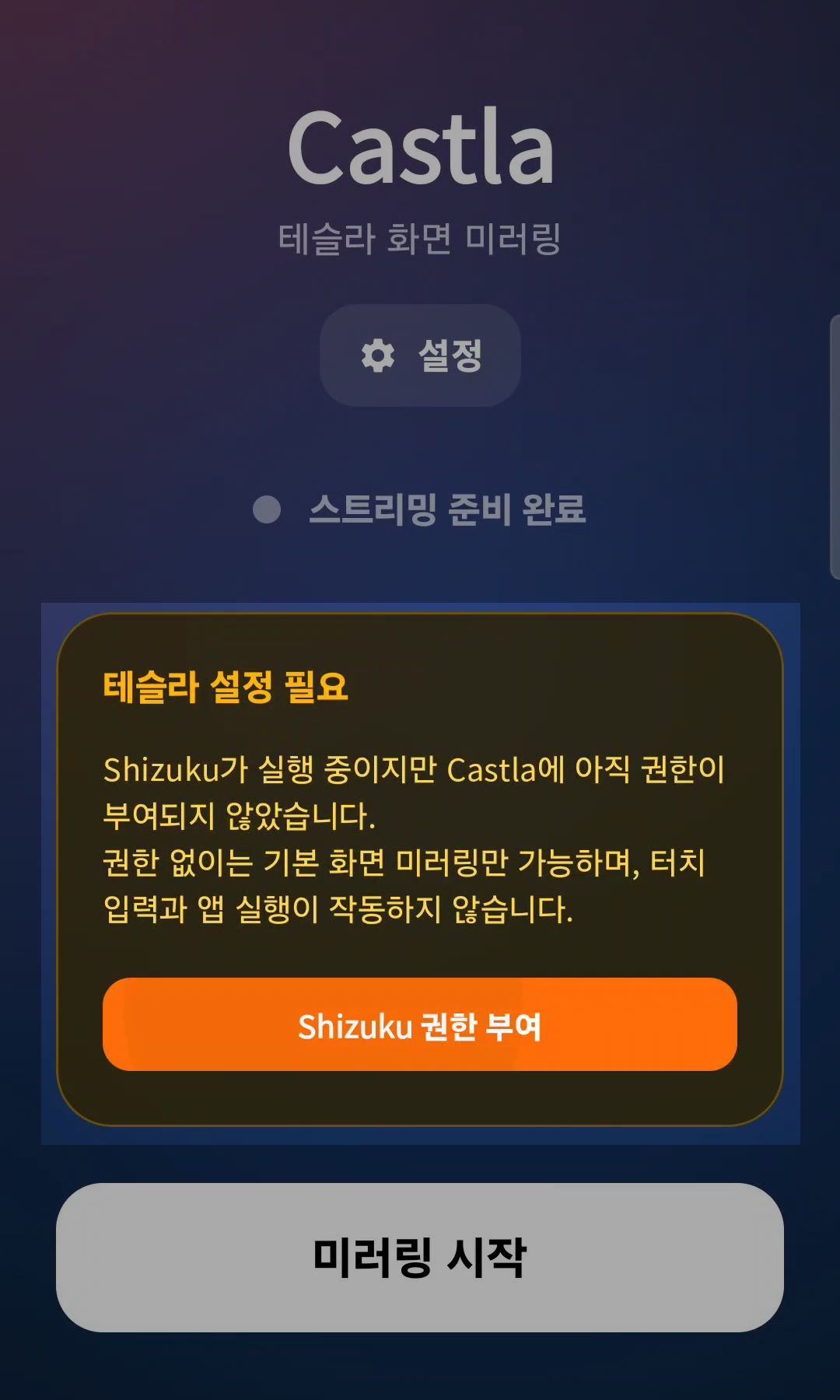
Shizuku가 실행 중인 상태에서 Castla 앱을 열면 "테슬라 설정 필요" 안내가 나타납니다.
- Shizuku 권한 부여 버튼을 탭하세요
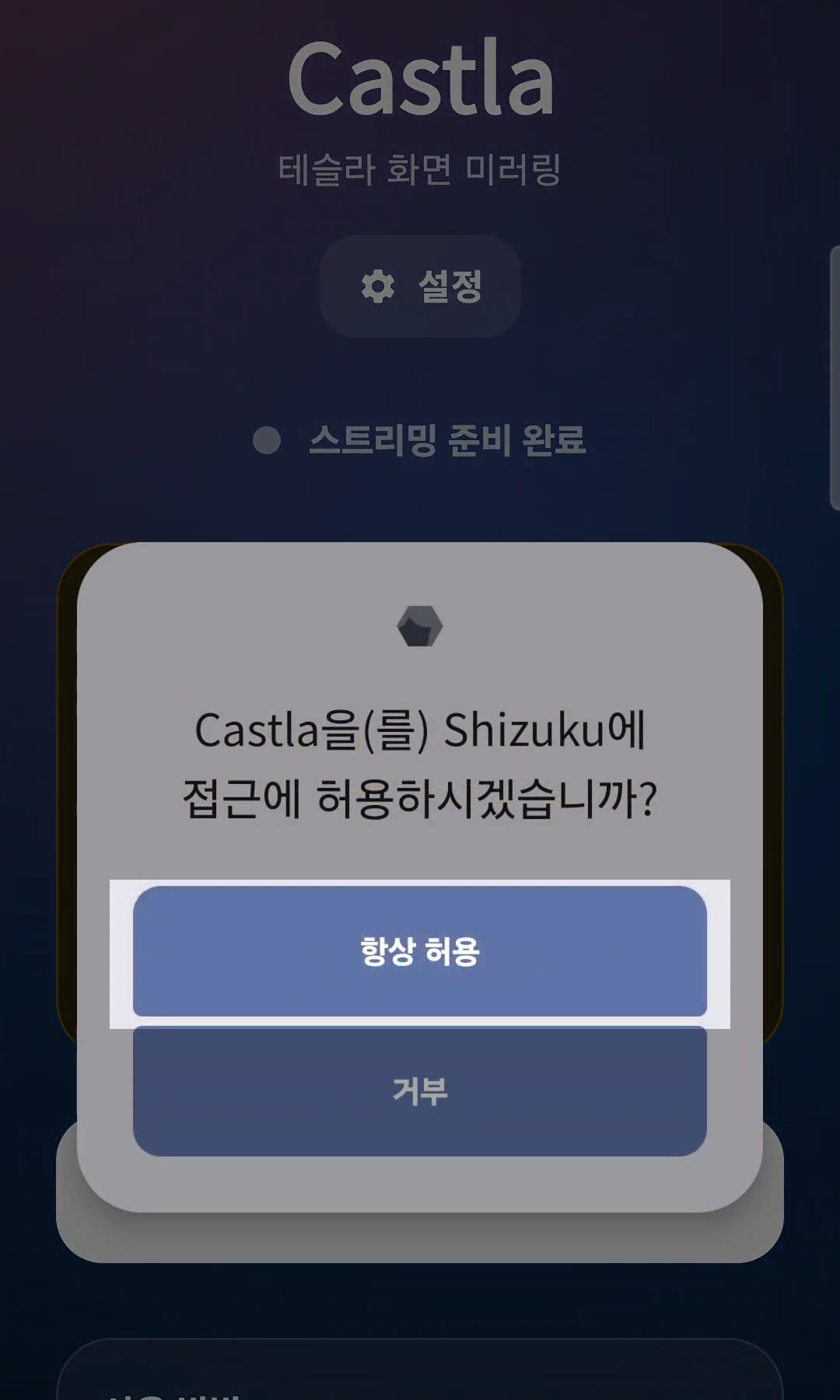
- "Castla을(를) Shizuku에 접근에 허용하시겠습니까?" 팝업에서 항상 허용을 선택하세요
미러링 시작
권한이 부여되면 바로 미러링을 시작할 수 있습니다.
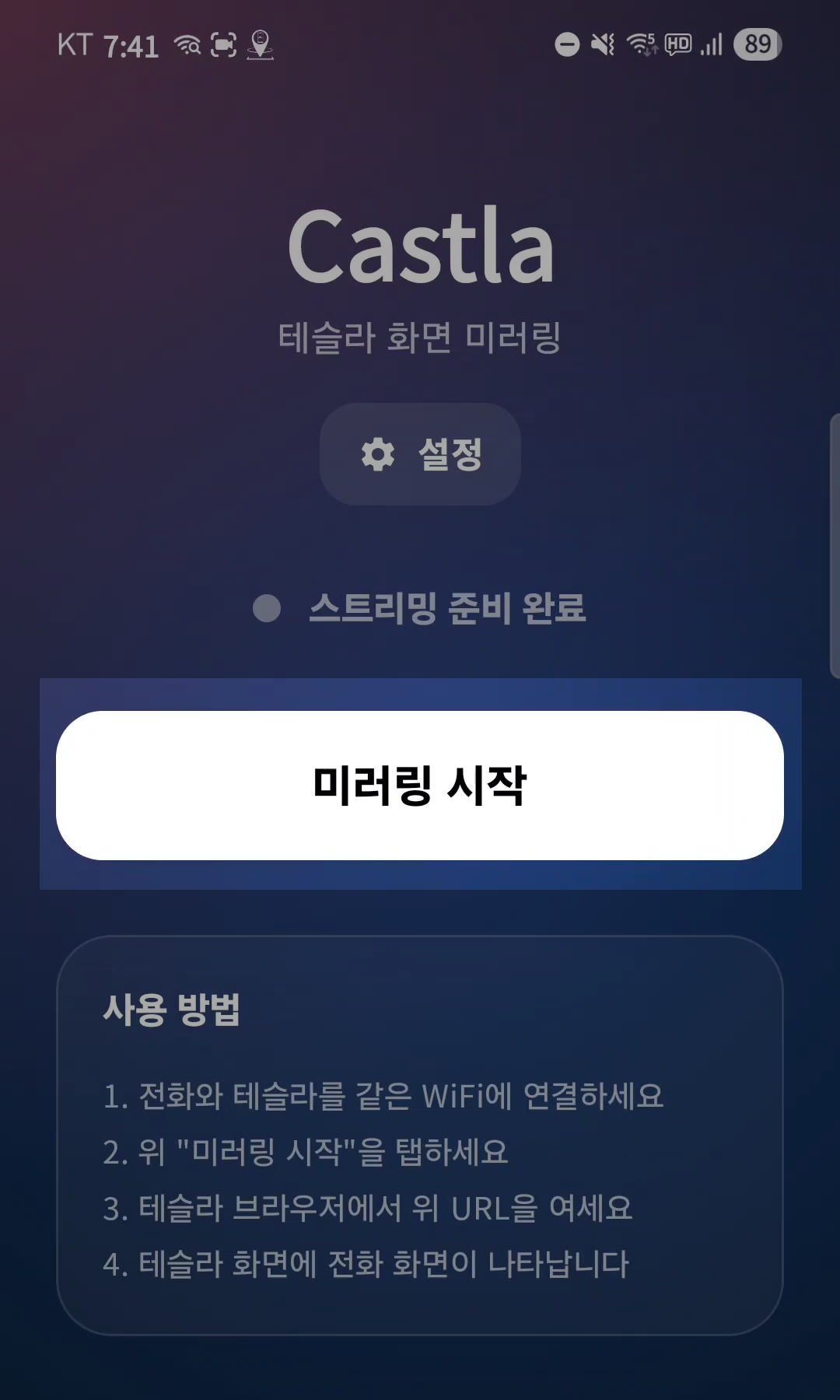
- 미러링 시작 버튼을 탭하세요
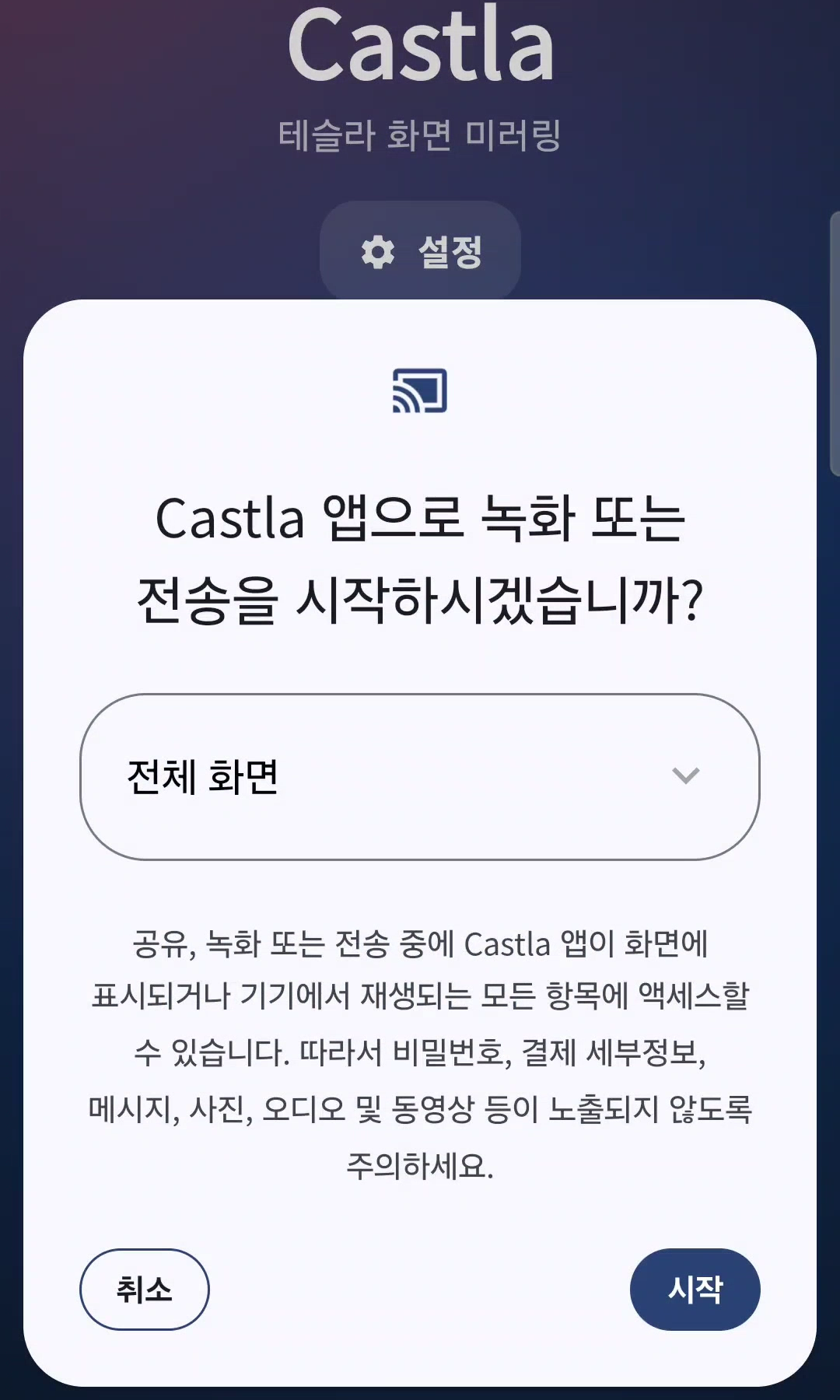
- 화면 캡처 권한 요청이 나타나면 시작을 탭하세요
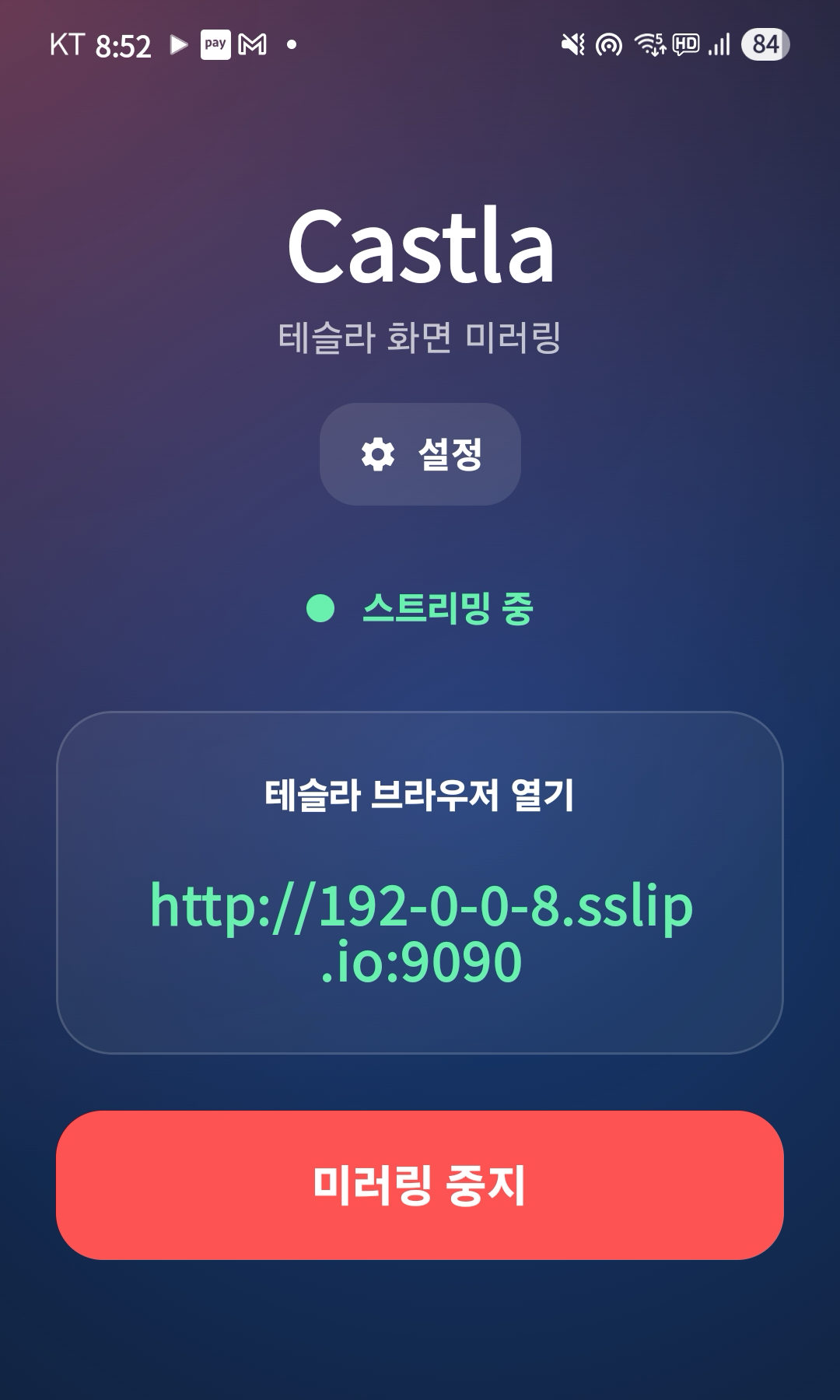
- 화면에 스트리밍 URL이 표시되면 Tesla 브라우저에서 해당 주소로 접속하세요
Troubleshooting
Wireless Debugging turns off automatically
Some devices disable Wireless Debugging when disconnected from WiFi. Restart your phone and tap "Start" in Shizuku again.
Shizuku won't start
Make sure pairing was done correctly and Wireless Debugging is ON. Restarting your phone and retrying Step 4 usually fixes it.
Shizuku가 시작되지 않아요
페어링이 올바르게 되었는지, 무선 디버깅이 ON인지 확인하세요. 폰을 재시작한 후 Step 4부터 다시 시도하면 대부분 해결됩니다.